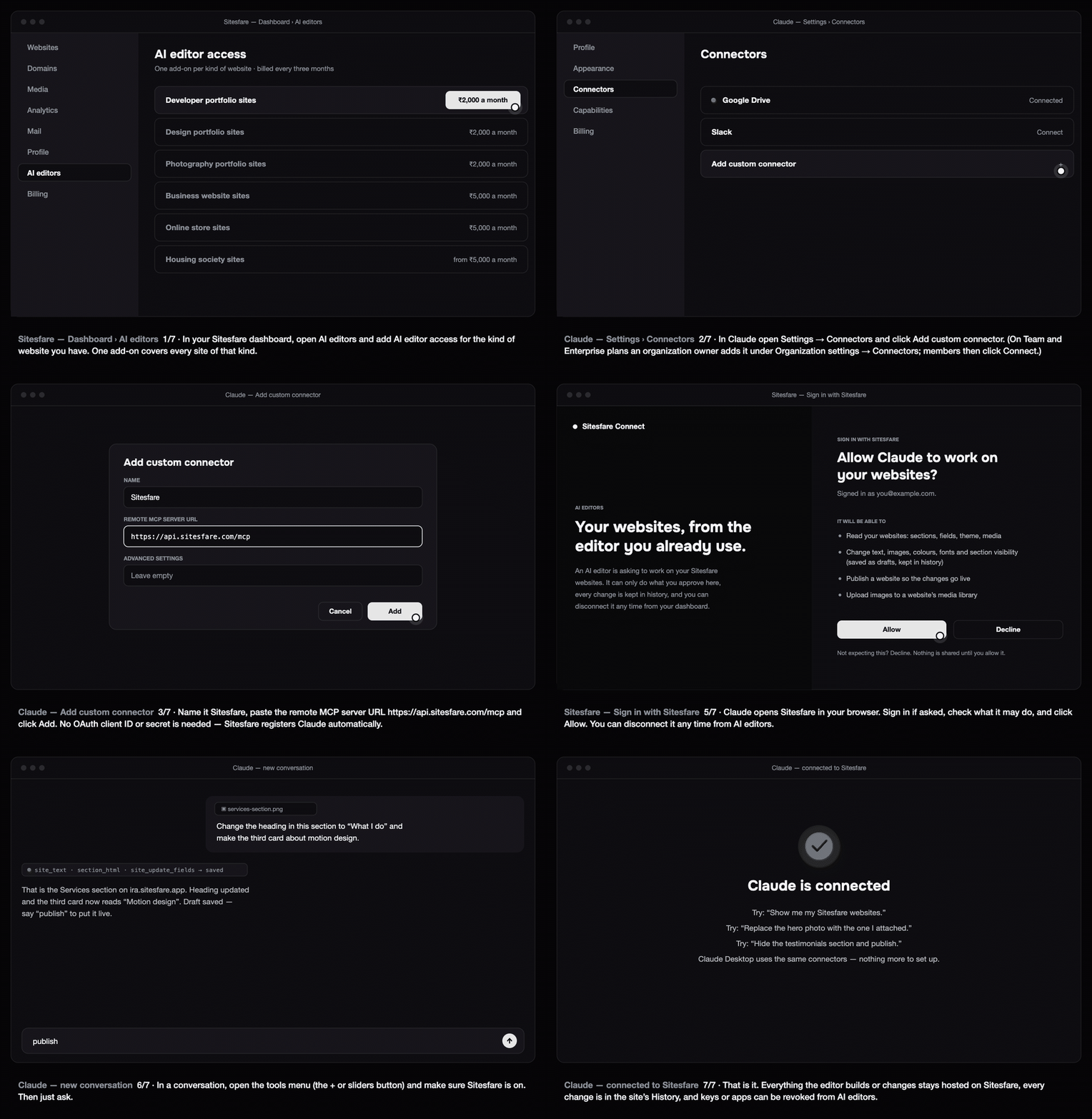
Claude — on claude.ai and in the Claude desktop app — can edit and publish your Sitesfare website once Sitesfare is added as a custom connector. Custom connectors are available on Claude Pro and Max; on Team and Enterprise an organization owner adds the connector for everyone.
Before you start
- In your Sitesfare dashboard open AI editors and add AI editor access for the kind of website you have (one add-on covers every site of that kind). See how Sitesfare Connect works.
1. Add the connector
- In Claude, open Settings → Connectors.
- Click Add custom connector.
- Fill in:
- Name:
Sitesfare - Remote MCP server URL:
https://api.sitesfare.com/mcp - Leave Advanced settings (OAuth client ID and secret) empty — Sitesfare registers Claude automatically.
- Name:
- Click Add.
On a Team or Enterprise plan, an organization owner does the same under Organization settings → Connectors; members then find Sitesfare in their own Settings → Connectors marked Custom.
2. Connect and sign in with Sitesfare
Next to Sitesfare in your connectors list, click Connect. Claude opens the Sitesfare Sign in with Sitesfare page: sign in if asked, read what Claude will be able to do, and click Allow. You are sent back to Claude.
3. Use it in a conversation
In a conversation, open the tools menu (the + or sliders button next to the message box) and make sure Sitesfare is enabled. Then ask in plain words — or paste a screenshot of a section and say what to change:
- "Show me my Sitesfare websites."
- "Update the About section of my portfolio with this: …"
- "Here is a screenshot of my services section — change the heading to 'What I do' and make the third card about motion design."
- "Hide the testimonials and publish."
Claude saves changes as drafts and tells you what it did; say "publish" to put them live. Every change is in the site's History with one-click undo.
The Claude desktop app uses the same connectors — nothing more to set up.
Troubleshooting
- Claude asks for an OAuth client ID and secret. Leave both empty and click Add; Sitesfare supports dynamic registration.
- "This account does not hold AI editor access…" Add the add-on for that kind of website under AI editors; the message says which one.
- The tools are not used. Check Sitesfare is enabled in the conversation's tools menu, and name it: "Use Sitesfare to…".
- You want to disconnect Claude. Dashboard → AI editors → Connected apps → Disconnect (and remove the connector in Claude's settings).
Using Claude Code in the terminal instead? See Connect Claude Code.
Questions
Does this work in the Claude desktop app?
Yes — connectors added on claude.ai are available in the desktop app with the same sign-in.
Claude asks for an OAuth client ID and secret.
Leave them empty. Sitesfare supports dynamic client registration, so Claude registers itself when you click Add.
Can I use Claude Code instead?
Yes — see the Claude Code guide. It uses a Studio key, or signs in with /mcp.