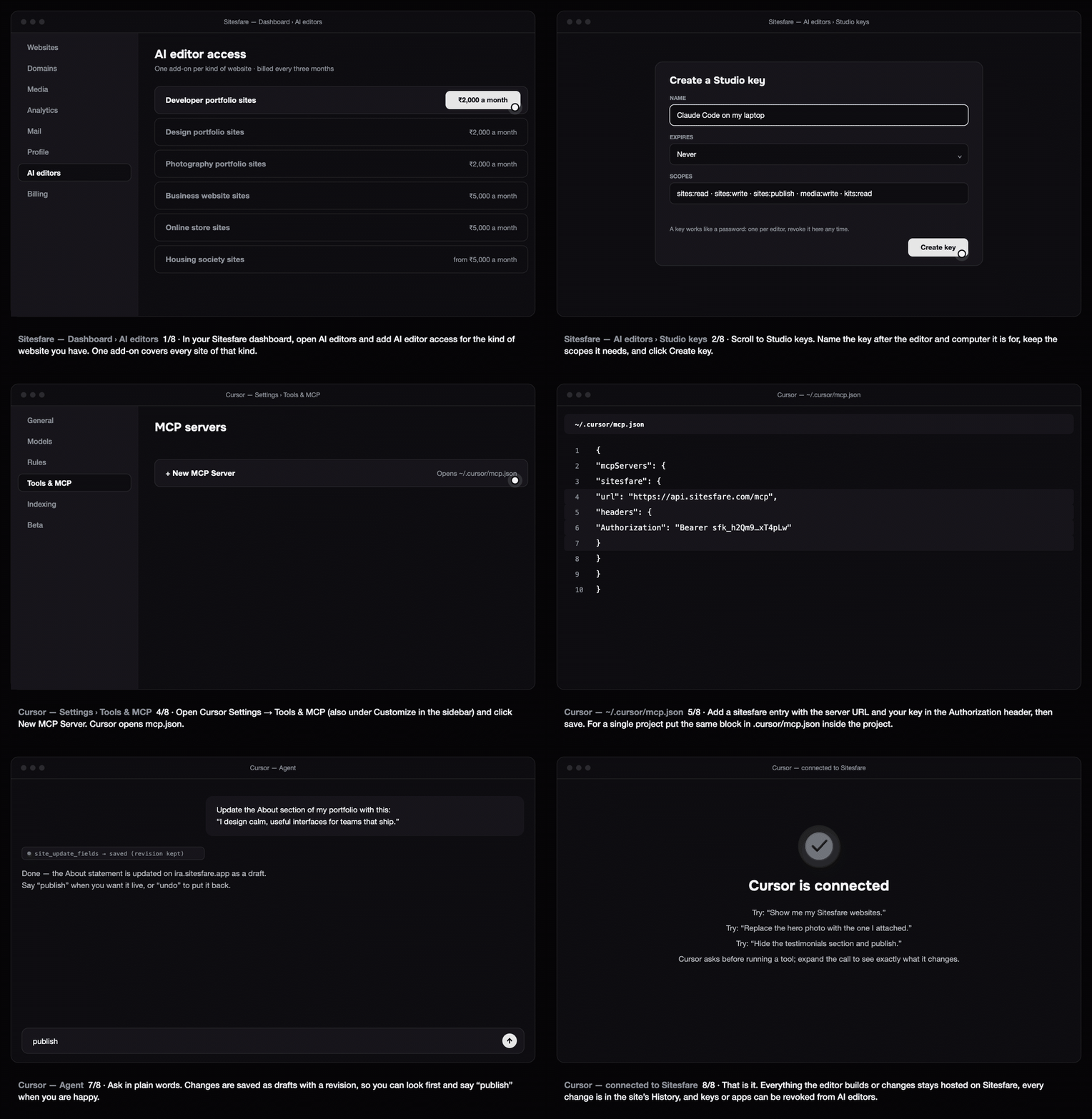
Cursor's agent can edit, publish and undo changes on your Sitesfare website. Sitesfare is added like any remote MCP server: a URL and a header in mcp.json.
Before you start
- In your Sitesfare dashboard open AI editors and add AI editor access for the kind of website you have. See how Sitesfare Connect works.
- Create a Studio key: AI editors → Studio keys → Create key → copy it. It is shown once.
1. Open mcp.json
Open Cursor Settings → Tools & MCP (also reachable from Customize in the sidebar) and click New MCP Server. Cursor opens ~/.cursor/mcp.json — the global file, for every project. For one project only, create .cursor/mcp.json inside that project instead.
2. Add Sitesfare
{
  "mcpServers": {
    "sitesfare": {
      "url": "https://api.sitesfare.com/mcp",
      "headers": {
        "Authorization": "Bearer <your Studio key>"
      }
    }
  }
}
Save. Back in Tools & MCP, sitesfare turns green and lists its tools. You can toggle a server on or off here any time.
To keep the key out of the file, put it in an environment variable and reference it: "Authorization": "Bearer ${env:SITESFARE_KEY}".
Prefer signing in? Leave out headers; Cursor shows Needs login next to the server — click it and approve on the Sitesfare page.
3. Ask in the agent chat
Cursor uses the Sitesfare tools when they fit, and asks before running one (expand the call to see exactly what it changes):
- "Show me my Sitesfare websites."
- "Update the About section of ira with this text: …"
- "Here's a screenshot of the gallery — use these four photos from ./shoot/ and publish."
- "Undo the last change on ira."
Changes are saved as drafts; say "publish" to put them live. Every change is in the site's History in the dashboard.
Troubleshooting
- The server shows but no tools. Check the key was pasted whole (it starts with
sfk_), then toggle the server off and on. The first tool call explains anything missing (for example the add-on for the site's category). - "This account does not hold AI editor access…" Add the add-on for that kind of website under AI editors.
- 401 / unauthorized. The key was revoked or mistyped — create a new one.
Questions
Can I keep the key out of the file?
Yes: put the key in an environment variable and reference it as "Bearer ${env:SITESFARE_KEY}" in the header.
Cursor says “Needs login”.
Sitesfare also supports signing in: remove the headers block, click the login prompt, and approve on the Sitesfare page.
The server shows but no tools.
Check the key was pasted whole (it starts with sfk_) and that your account holds AI editor access for the site’s category — the first tool call explains what is missing.