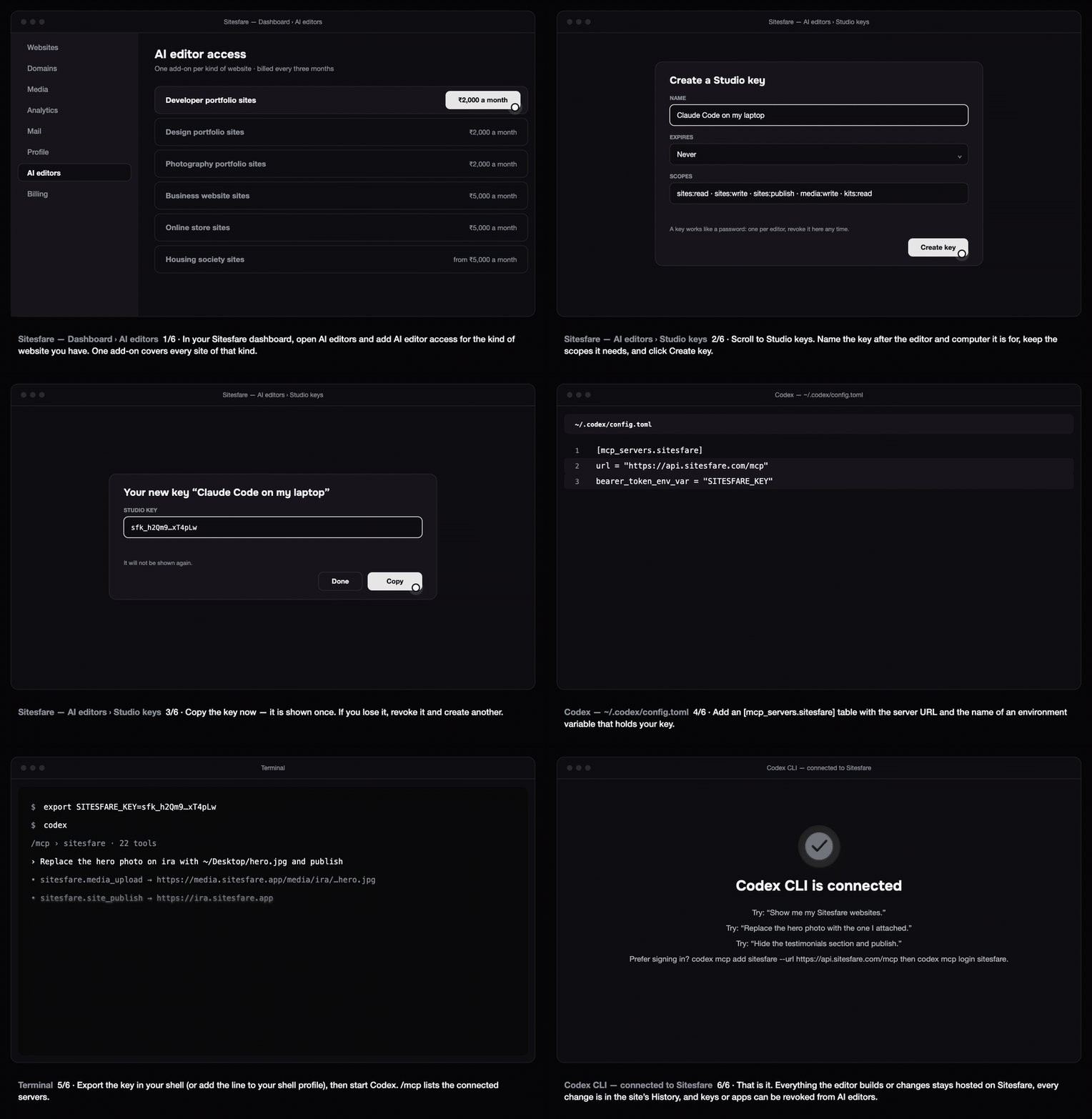
Codex CLI can edit, publish and undo changes on your Sitesfare website from the terminal. Sitesfare is a remote (streamable HTTP) MCP server in Codex's config.toml.
Before you start
- In your Sitesfare dashboard open AI editors and add AI editor access for the kind of website you have. See how Sitesfare Connect works.
- Create a Studio key: AI editors → Studio keys → Create key → copy it. It is shown once.
1. Add the server to config.toml
Open ~/.codex/config.toml and add:
[mcp_servers.sitesfare]
url = "https://api.sitesfare.com/mcp"
bearer_token_env_var = "SITESFARE_KEY"
bearer_token_env_var is the name of an environment variable; Codex reads the key from it and sends it as the Authorization header, so the key never sits in the file.
2. Export the key and start Codex
export SITESFARE_KEY=<your Studio key>
codex
Add the export line to your shell profile (~/.zshrc or ~/.bashrc) to keep it. Inside Codex, /mcp lists the connected servers; codex mcp list does the same from the shell.
Prefer signing in instead of a key? Register the server and log in — Codex opens the Sitesfare page where you click Allow:
codex mcp add sitesfare --url https://api.sitesfare.com/mcp
codex mcp login sitesfare
3. Ask
- "Show me my Sitesfare websites."
- "Replace the hero photo on ira with ~/Desktop/hero.jpg and publish."
- "Here's a screenshot — change the heading of that section to 'Selected work'."
- "Undo the last change on ira."
Changes are saved as drafts; say "publish" to put them live. Every change is in the site's History in the dashboard with one-click undo.
Troubleshooting
- 401 / unauthorized.
echo $SITESFARE_KEYshould print a key starting withsfk_; if not, export it in the same shell you start Codex from. - "This account does not hold AI editor access…" Add the add-on for that kind of website under AI editors.
- Codex cannot read my image. Give it the file path; it uploads through
media_upload(up to 5 MB per image). Anhttps://link to the image also works.
Questions
Can I sign in instead of using a key?
Yes: codex mcp add sitesfare --url https://api.sitesfare.com/mcp, then codex mcp login sitesfare and approve on the Sitesfare page.
Codex cannot read my image file.
Point it at the file path; Codex uploads it through media_upload (up to 5 MB per image). Or give it an https link to the image.