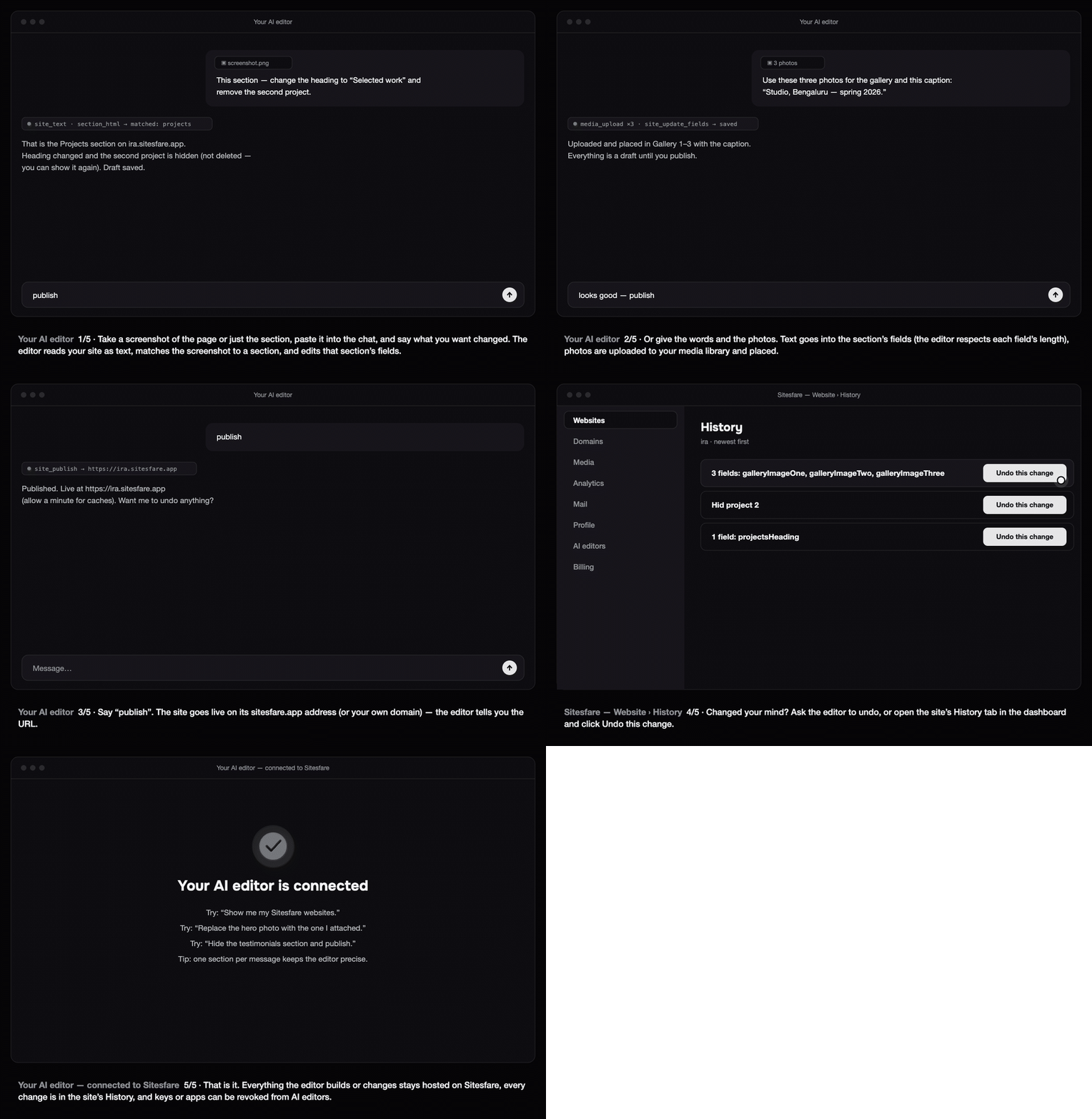
Once your AI editor is connected to Sitesfare, you do not need to know field names or section ids. Show it the part of the page and say what you want.
From a screenshot
- Take a screenshot of the page — or just the section you want changed — and paste it into the chat.
- Say what to change: "This section — change the heading to 'Selected work' and remove the second project."
The editor reads your site as an outline (every section's headings, text and images), matches what it sees in the screenshot to a section, and edits that section's fields. Removing an item hides it — nothing is deleted, and it can be shown again.
Tips:
- One section per message keeps it precise.
- If it picks the wrong section, say which one: "no, the Services section". It can list every section of the site.
- A tighter screenshot (just the section) matches faster than a whole page.
From text and photos
Give the words and attach the images:
Use these three photos for the gallery and this caption: "Studio, Bengaluru — spring 2026."
Text goes into the section's fields — the editor respects each field's length and type, so a label stays short and a paragraph can be long. Photos are uploaded to your media library (up to 5 MB each) and placed in the image fields. An https:// link to an image works too.
Publish
Nothing is live until you say so. Say "publish"; the editor publishes and tells you the address (yourname.sitesfare.app, or your own domain). Allow a minute for caches.
Undo
Changed your mind? Say "undo that", or open your website's History tab in the dashboard and click Undo this change. Every change an editor makes is listed with who made it and which fields changed; undo restores the content as it was before that change, and can itself be undone.
What it can and cannot do
- It can: change any word, link, date or photo; show or hide sections and repeating items; change the accent colour, fonts, mood and per-section background colours and photos; upload images; publish; undo; start a new site from any template.
- It cannot: change the template's own layout code, add a section the template does not have, or move the site to another host (see the hosting licence).
Example prompts
- "Here's a screenshot of my hero — swap the photo for the attached one and make the headline 'Calm, useful interfaces'."
- "Update the About section with this text: …"
- "Hide the testimonials section and publish."
- "Change the display font to Syne and the accent colour to #1F6F4A."
- "Add these five projects to my portfolio: (title, one line, link) …"
- "What did the AI change on ira this week?" — it reads the history.
Questions
What if the editor picks the wrong section?
Tell it the section name (“no, the Services section”) — site_get lists every section — or paste a tighter screenshot. Nothing is lost: every change is in History.
Can it add a new section or change the layout?
It can show, hide and fill the sections the template has, change colours, fonts and section backgrounds, and start a new site from any template. The template’s own layout code stays on Sitesfare.